Now that I've created a 3D token, it occurs to me that I could probably animate it. Here's the end result.
This tutorial was easy to follow and taught me how to spin the token:
I've done a little bit of special effects work in Adobe Aftereffects and a little bit of moving titles in KDenLive (video editing software). So the idea of applying an effect to different keyframes feels pretty natural to me.
What was less familiar was the idea that I'd need to insert an artificial light-source and a virtual camera in order to film the token moving. I'd sort of heard about this on the special features for the Toy Story movies.
Another tutorial (and some trial and error) sorted me out:
So it's time to continue trying to create a game piece in Blender that I can send to a 3D printer.
I've just created a small disc. My next objectives are to give it a little bit of an indent or rim and to try and put an image on top of it.
But first, thanks to everyone for their help and advice in the previous posts. Here's what you've taught me:
Check out YouTube and the Blender Foundation for tutorial. The Foundation has a great series on making models that will work for printing
When 3D printing, you need a manifold or "watertight" mesh. When you've TABbed into an object and can select its vertices (Edit
Mode), make sure you have no vertices selected (hit A, then A again just
to be sure. That'll select all, then deselect all). Then choose Select
-> Non-Manifold. Blender will tell you if you have illegal geometry
(for printing).
You'll need to apply the modifiers when you export for 3D printing, but
the Export option has a checkbox called "Apply Modifiers", so you can
just have Blender do that for you.
There are Blender cheat-sheets, including this one: Blender Hotkeys (.pdf)
There's a official add-on for 3D printing, that's shipped with the Linux version (which is what I'm using). I need to check User Preferences > Add-ons to confirm it's installed.
G is the "move selection" hotkey. R is rotate, and S is scale. Holding
down Ctrl will let you snap to unit increments as you go (by default -
this can be changed).
The numpad controls your views. You can split your viewport into 4 quarters so you have top, 3D perspective,
front, and right views. Like this: http://puu.sh/itYNS/cd88e7be59.jpg
The easiest next step should be finding out if I can import a .jpg file and map it over one side of the disc. Here's the image I want to map:
It took a little bit of mucking around in GIMP to create this on a transparent 60x60mm layer. A quick check in Blender's File > Import menu doesn't reveal any obvious options for images.
But accidentally pressing CTRL-TAB brings up the Brush menu and a whole bunch of other painting related options. Seems like that might become useful, soon.
Anyway, this short tutorial shows me how to import an image:
Success!
I'm not sure how to move it into the main window, yet. You can't click and drag it.
So now I'm wondering if I'm going about this the wrong way. Could I:
import the image directly onto a new cylinder, or
add the image as a texture to my existing cylinder?
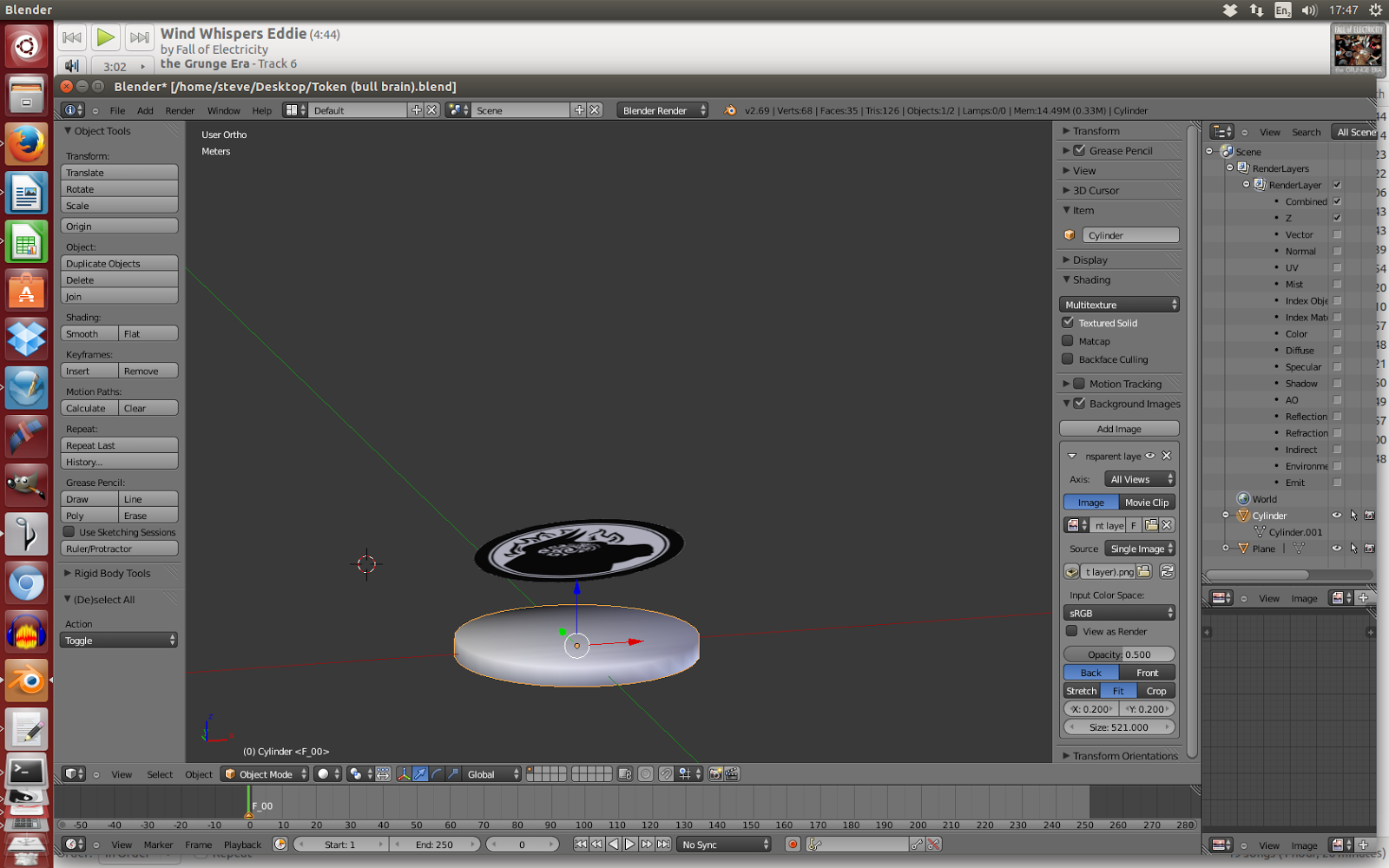
After button-mashing for a bit, I selected the 'Shading' menu and ticked 'Textured Solid', which creates this:
That's pretty close. Now: can I shift it onto the cylinder? ... I've discovered that right-clicking an object selects it. In the 'Object Tools' menu, I can click on 'Translate' and manually shift the image around.
An astounding comedy of error follows, as I accidentally rotate the bull image and shift it 24 metres away from a 39mm large object. After struggling to find and reposition it, I have this:
For my serenity, I walk away for a couple of hours. When I come back, I find (and follow) this crystal clear tutorial, which does exactly what I want:
Following those instructions, I succeed in putting the texture on the disc. You can see it on the right-hand side, below. It's not centred yet, but I'll take the win:
And that's where I think I'll leave it, for the moment.
I've started teaching myself how to create a 3D object. Last time, I learned how to create a sphere (SHIFT-A > Mesh > UVSphere) in Blender, an open-source 3D graphics programme.
Through a combination of accidental button-mashing, I've learned how to rotate the camera slightly: using the scroll-wheel and different combinations of ALT, CTRL, CTRL-SHIFT.
So, 1.8 goals down. Now to try and figure out how to make a disc and then make it 39mm in diameter and 3mm thick.
Checking the Mesh > Shape options, it looks like 'cylinder' gives me exactly what I want. But the default cylinder is too thick. I want to adjust its dimensions.
There has to be something on-screen that'll let me define that. Looking at the Object tools menu, there's a section that's specifically about the cylinder--and it has categories for vertices, radius, and depth.
Let's see what adjusting the depth does ...
So it looks like adjusting the dimensions is easy. But how do the units that Blender uses correspond to the real world? What is a radius of 1 in millimeters?
Googling 'blender measure' brings up a couple of tutorials and Q&As:
It looks like there's something called the 'Scene' tab, which has a 'Units' option in it. And in Units, there should be options for:
None
Imperial
Metric
... but after a thorough look around, I don't see 'Units' in the Scene tab. ... And my attempts to add one lead to frustration and losing all the default toolbars. After restarting Blender I find the Units section they're talking about ... but only by observing which button is highlighted blue at the top of this picture in one of the tutorials):
A small bit of fiddling around later, and I've created a 39x3mm token!
For the last year, I've been realising that I need to learn how to create objects for 3D printing. It feels like it'll be a useful skill within about 1-3 years.
Step 1: Find out what file type you use for 3D objects. Google tells me that they're .obj and and .stl files.
Step 2: Find an open-source programme to create 3D objects. I've chosen Blender.
Step 3: Install and boot up Blender 2.69 ...
Step 4: Try and figure out how to do something. My first two goals will be to rotate the camera and to change this starting square object into a sphere.(*)
(*) This is one of my favourite parts of the learning process:
seeing an overwhelming number of buttons and options,
and gradually making sense of them.
My experience with teaching myself GIMP and Scribus is that whatever you google for, there's usually a tutorial.
So, after googling I immediately learn that:
TAB changes the menus on the side of the screen from 'Object Tools' to 'Mesh Tools'
You can select all the vertices of an object by pressing 'A' (and I've learned that the idea of 'an object's vertices' is important)
... and I've learned that there's a 'To Sphere' button somewhere on this screen but that I can also 'sub-divide' the object 100 times.
I can't immediately find the Sphere button, but pressing sub-divide seems to freeze up the programme. After it recovers, I set the smoothness of those subdivisions to '100', which totally explodes the screen:
So, that's not the way. After rebooting my computer, I try it again with different values for smoothness, but sub-division just seems to create a bunch of different spheres bulging out of the original one.
Doing this, though, I learn how to drag the object through 3 dimensions:
click on the blue/green/red arrows in the centre of the screen
drag the cursor left/right and up/down
Time to find a new tutorial. This 'Build a penguin' one looks like it has some good info.
And success! Pressing SHIFT-A > Mesh > UVSphere creates a sphere I can drag around.
That Mesh menu has tonnes of options, including 'Circle. I wonder if I can create layers of it, to build a disc?